See your garment on a model. Free preview render, no signup.
Try a free previewVendure is an open source, headless commerce framework. Your developers build the storefront, so there is no single theme image size. Instead, Vendure stores your upload, makes a preview image from it and resizes that preview on the fly for each place it is shown. This page collects what the official Vendure docs say about those sizes, with the version and the date we checked them, and turns it into settings for clothing photos. We make NotShot, an AI on-model photo tool, so we also cover where on-model images fit.
The Vendure docs on assets explain the flow. You upload a file as an asset, a preview strategy makes a preview image with a maximum size, and both files are stored on local disk or in an object store such as S3. Assets can be attached to products, variants and collections, and each product also has a featured asset, which storefronts usually show as the main image.
The AssetServerPlugin options set the preview to a maximum of 1600 × 1600 pixels by default. The storefront then asks for sizes from that preview. So an upload larger than 1600 pixels on its long side is scaled down for display, and a smaller one gives the storefront less to work with.
The AssetServerPlugin docs (Vendure v3.8.1, checked by us on 1 November 2026) list the presets it comes with:
A storefront can call a preset by name or ask for any width and height in the image URL. Your developers can add presets of their own, and since v3.1.0 they can limit requests to known presets with the PresetOnlyStrategy, which the docs advise to prevent abuse.
The ImageTransformMode docs describe the two modes. Crop fills both dimensions and cuts what is left over. Resize keeps the aspect ratio and makes the image as large as it can be while staying inside both dimensions.
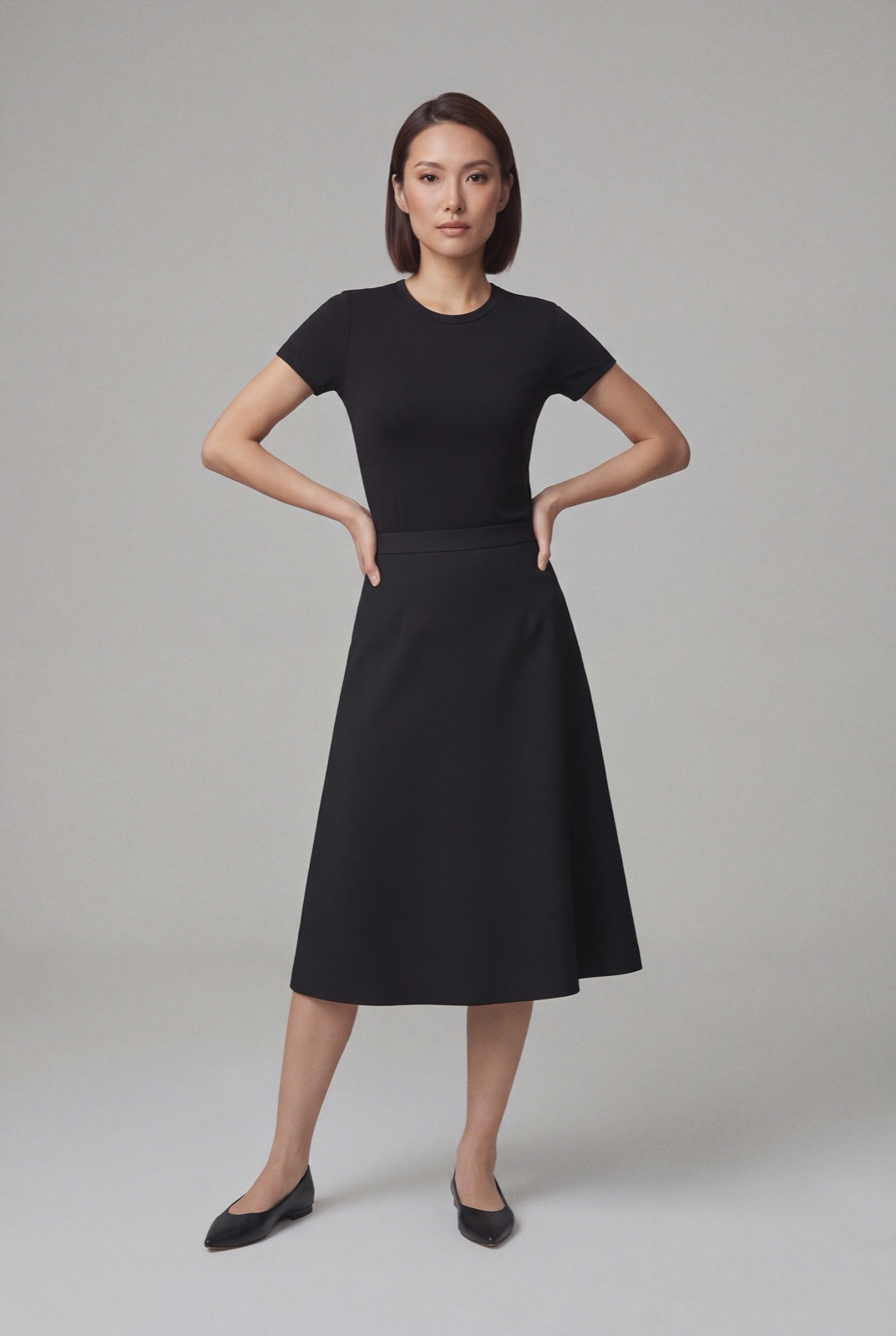
That matters for a standing model. In the square presets, resize keeps the whole tall photo and leaves the box narrower than it is tall, while crop cuts a square out of it. When cropping, Vendure keeps the busiest area of the image, which is not always the garment. You can pass a focal point with the fpx and fpy parameters, from 0 to 1, to keep the part you choose. For clothing, ask your developers to use resize, or portrait presets such as 600 × 800, for product page images, and to keep crop for small thumbnails.
The AssetOptions docs set uploadMaxFileSize to 20971520 bytes by default, which is 20 MB, and permit image, audio, video and PDF files. Both can be changed in the Vendure config.
On the output side, the AssetServerPlugin can turn any image into JPEG, PNG, WebP or AVIF with a format parameter, available since v1.7.0, and set quality with a q parameter, available since v2.2.0. The default quality is 80 for JPEG and WebP and 50 for AVIF. So you can upload a high quality JPEG and let the storefront serve WebP or AVIF to browsers that support them.
Running another platform too? Compare Medusa product image size for clothing, Saleor product image size for clothing and Spree product image size for clothing. For lighting and backdrops, see our clothing product photography guide.
The Vendure docs set no rule against models in product images, so on-model photos can sit next to your packshots as the featured asset or as extra images. Check each marketplace's own rules before you sell there. NotShot renders your garment on your own model from the product photo you already have, and every render is checked by an AI judge that compares it with your upload for color, print and cut. Renders below the quality bar are refunded automatically, so you pay for photos that pass the check, not for attempts. Plans are on the pricing page.