Medusa is a headless commerce platform: the Medusa docs on its architecture explain that storefronts, admin dashboards and other clients use Medusa through its API. That means your storefront, not Medusa, decides how large product photos appear. What Medusa does set is how big a file you can upload in the admin, which formats it accepts, and how you order images and link them to variants. This page collects what the official Medusa docs and the Medusa v2.22.2 source code say, with the date we checked them, and turns that into settings for clothing photos. We make NotShot, an AI on-model photo tool, so we also cover where on-model images fit.
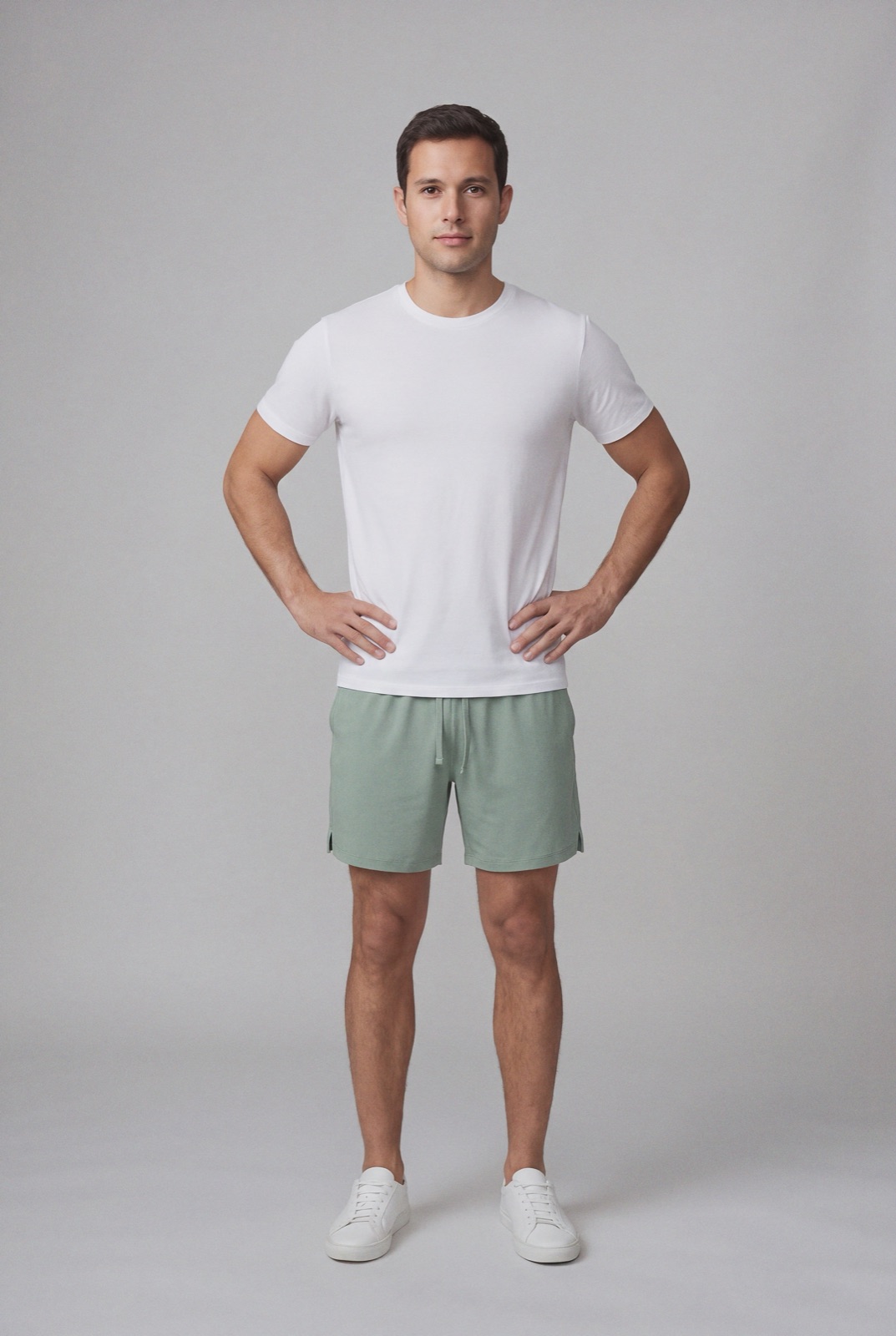
An on-model render made with NotShot, 1073×1600 pixels and about 240 KB as a JPEG, so it fits under the Medusa admin default upload limit of 1 MB.
Raise it: set admin.maxUploadFileSize in medusa-config.ts. The example in the source uses 10 MB.
Remove it: set it to Infinity.
A large JPEG with fine fabric detail can go over 1 MB. Either export your photos to stay under it, or ask your developer to raise the limit before you upload a full catalog. The admin rejects a file over the limit with an error that shows the maximum size.
For on-model clothing photos, JPEG or WebP gives the smallest files for the detail, which matters with a 1 MB limit. Before you upload HEIC or SVG files, check that your storefront can show them.
Pick the pixel size from your storefront
Medusa does not publish a recommended pixel size for product images, since the storefront draws them. To choose one:
Find the widest your storefront shows a product image, including any zoom, and double it for high density screens.
Keep every product image in the same shape, such as 3:4 portrait, so the product grid lines up.
Export at that size and check the file stays under your upload limit.
Add images: choose Edit in the Media section, then drag and drop images or click Upload images.
Order: drag and drop images in the same form to change the order they are shown in.
Thumbnail: select an image and press T or click Make thumbnail.
Variant images: from Medusa Admin v2.11.2, select an image and click Manage associated variants. The image then shows only when that variant is selected, such as one color. An image with no variant shows for all variants.
Where the files are stored
The Medusa File Module docs explain that uploads such as product images go through a File Module Provider. By default, Medusa uses the Local provider, which saves files in the uploads directory, and the Local provider docs warn it is only for development. For a live store, the docs recommend another provider, such as the S3 provider. Check this before you upload your product photos, so they end up in the storage your live store uses.
Medusa image checklist for clothing
Limit: check maxUploadFileSize, 1 MB by default, and raise it if your photos need more.
File: JPEG or WebP, under your limit.
Shape: one aspect ratio for all product images, such as 3:4 portrait.
Size: at least twice the widest your storefront shows an image.
Thumbnail: the best front or on-model view, set with Make thumbnail.
Variants: link each color's images with Manage associated variants.
The Medusa docs set no rule against models in product images, so on-model photos can sit next to your packshots and variant images. Check each marketplace's own rules before you sell there. NotShot renders your garment on your own model from the product photo you already have, and every render is checked by an AI judge that compares it with your upload for color, print and cut. Renders below the quality bar are refunded automatically, so you pay for photos that pass the check, not for attempts. Plans are on the pricing page.
Questions we get asked
What is the maximum image upload size in Medusa?
In the Medusa v2.22.2 source, the admin option maxUploadFileSize sets the largest file you can upload in the admin dashboard. Its default is 1048576 bytes, which is 1 MB. Your developer can raise it in medusa-config.ts, for example to 10 MB, or set it to Infinity to remove the limit.
What image size should I upload to Medusa for clothing?
Medusa does not publish a recommended pixel size, because Medusa is headless and your storefront decides how large images appear. Upload photos at least as large as the biggest size your storefront shows, in one aspect ratio such as 3:4 portrait, and keep each file under your admin upload limit.
Which image formats can I upload in the Medusa admin?
The Medusa v2.22.2 admin dashboard accepts JPEG, PNG, GIF, WebP, HEIC and SVG files for product media.
How do I set the main product image in Medusa?
In the Media section of the product page, choose Edit, select the image and click Make thumbnail, or press T, then save. You can also drag images to change their order.
Can each color have its own images in Medusa?
Yes, from Medusa Admin v2.11.2. Select an image in the Media section and click Manage associated variants to pick the variants it belongs to. An image with no variant shows for all variants of the product.
NotShot is a Berlin-based tool for on-model product photography without the photoshoot. Try NotShot