Gambio is a shop system from Germany, and its official manual is published in German on developers.gambio.de. It does not publish a required upload size for product images. Instead it lets you set the sizes the shop creates from each upload. This page collects what the manual says about product images, with the date we checked it, translates the menu names, and turns it into settings for clothing photos. We make NotShot, an AI on-model photo tool, so we also cover where on-model images fit.
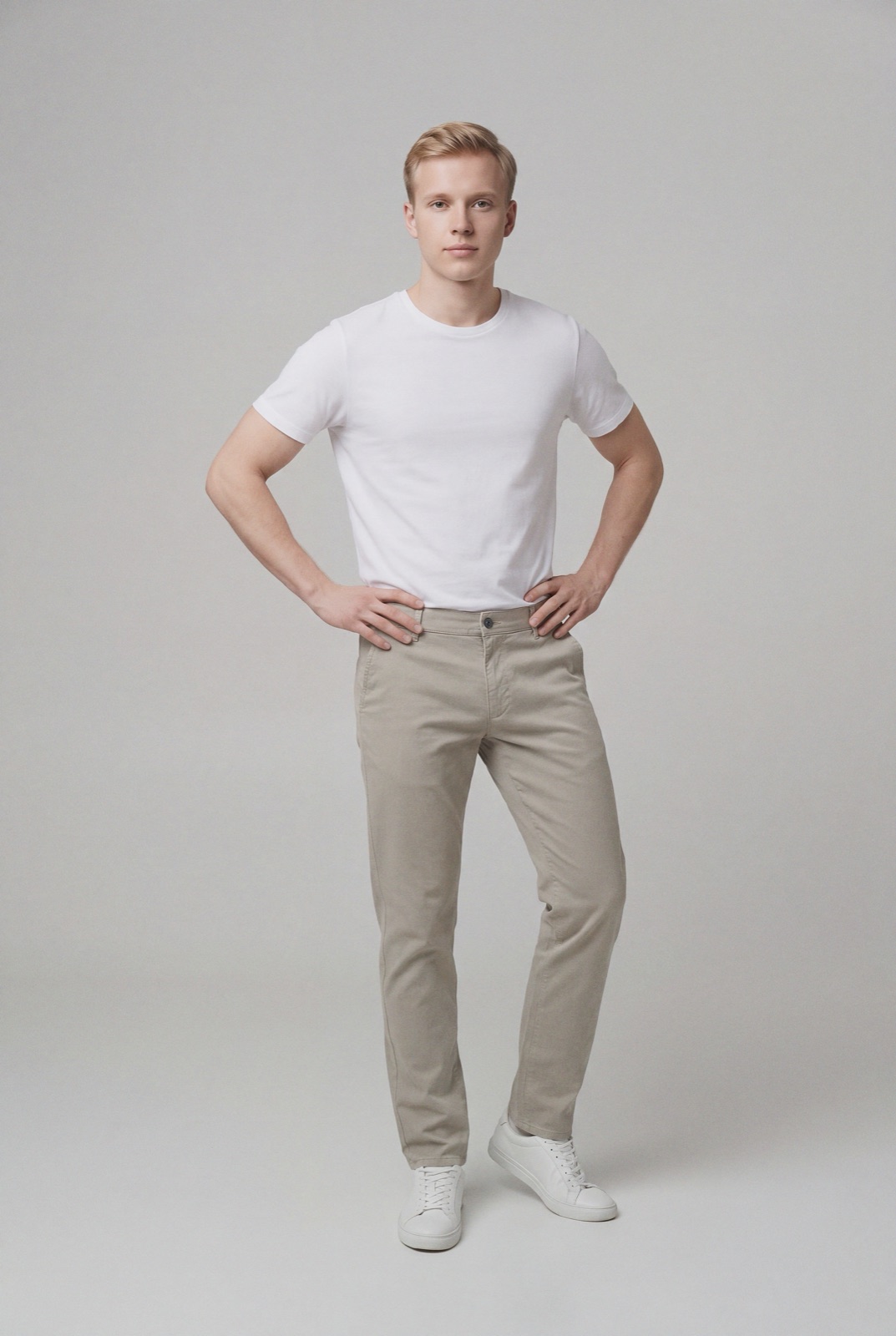
An on-model render made with NotShot, 1073×1600 pixels. Gambio scales copies of each upload to your thumbnail, info and popup sizes, so the upload should be at least as large as your popup size.
How Gambio creates image sizes
The Gambio Shopsystem manual (checked by us on 1 November 2026) says product images are adjusted to the different output sizes automatically when they are uploaded. For every product image, copies are created and scaled for their use. The manual adds a warning: changing the output sizes can have a considerable effect on image quality and loading time.
It also notes that the output size is not the same as the displayed size. In the Honeygrid and Malibu templates, the displayed size depends on the StyleEdit settings, and the size settings mainly affect the quality of the output images.
The image options
Under Layout & Design » Bildoptionen (image options), the manual lists these settings:
Small product images in overviews and swipers: use the smaller thumbnails instead of the info images.
Calculate image size: when active, the shop calculates the image variants automatically.
Image quality: the JPEG quality of the converted images, in percent.
Thumbnail width and height: the preview image in product lists, when small product images are turned on.
Info image width and height: the image on the product page, and the large preview images when small product images are turned off.
Popup image width and height: the large view for flyover, zoom and the product image lightbox.
For clothing, the popup size matters most, because zoom is where shoppers check fabric, stitching and print.
Changing sizes later
The manual says changes to the image options only apply to newly uploaded product images. To update existing images, open Layout & Design » Bildverarbeitung (Image Processing) and run the batch processing. The same step is needed after uploading image files directly into the folder /images/product_images/original_images/ on the server (checked 1 November 2026).
Main image, alt text and image count
From the product editing chapter of the manual:
Image count: the number of images per product can be set freely, up to a maximum of 1000. By default there is one entry for the main product image, and Bilder hinzufügen (add images) adds more.
Upload: images are picked or uploaded through the Responsive FileManager.
Deleting: tick Löschen (delete) next to an image in the product form and save, and the image is deleted permanently.
Collections for colors
The manual describes collections (Kollektionen, also called image lists) as sets of images used when a product has options. A collection is assigned to an option, and once the customer makes a choice the shop shows the matching images. After uploading to a collection you pick the main image, which is shown first and can be changed later. For each image a title must be entered for every language used, and an alternative text can be added, shown for example when the image can't be loaded. Images in a collection can be dragged into a new order (checked 1 November 2026).
For clothing, that means one collection per color, each with its own front, back, detail and on-model shots.
Gambio image checklist for clothing
Sizes first: set the thumbnail, info and popup sizes before you upload, in the ratio you shoot in.
Originals: upload files at least as large as your popup size, so zoom has detail to show.
Quality: set the JPEG quality and check knits, prints and dark fabrics at that setting.
Batch processing: after any size change, run the batch processing under Image Processing.
Display: check the shown size in StyleEdit, since the output size is not the displayed size.
Colors: create one collection per color and pick its main image.
Text: enter a title and an alt text in every shop language.
The Gambio manual sets no rule against models in product images, so an on-model photo can sit in each color collection next to your packshots. Check each marketplace's own rules before you export there. NotShot renders your garment on your own model from the product photo you already have, and every render is checked by an AI judge that compares it with your upload for color, print and cut. Renders below the quality bar are refunded automatically, so you pay for photos that pass the check, not for attempts. Plans are on the pricing page.
Questions we get asked
What image size does Gambio need?
The Gambio manual does not set a minimum upload size. Under Layout & Design, Bildoptionen (image options) you set the width and height of three output sizes: thumbnails for product lists, info images for the product page, and popup images for zoom and the lightbox. Gambio scales copies of each upload to those sizes. Checked in the Gambio manual on 1 November 2026.
Why didn't my new Gambio image settings change existing photos?
The manual says changes to the image options only apply to newly uploaded product images. To apply them to existing images, run the batch processing under Layout & Design, Bildverarbeitung (Image Processing).
Is the Gambio output size the size shown in the shop?
No. The manual notes that the output size is not the displayed size. In the Honeygrid and Malibu templates the displayed size depends on the StyleEdit settings, and the image option sizes mainly affect the quality of the output images.
How do I show different photos per color in Gambio?
Use collections (Kollektionen, also called image lists). The manual says a collection is assigned to a product option, and once the customer makes a choice the shop shows the matching images.
How many images can a Gambio product have?
The manual says the number of images per product can be set freely, up to a maximum of 1000 images per product.
NotShot is a Berlin-based tool for on-model product photography without the photoshoot. Try NotShot