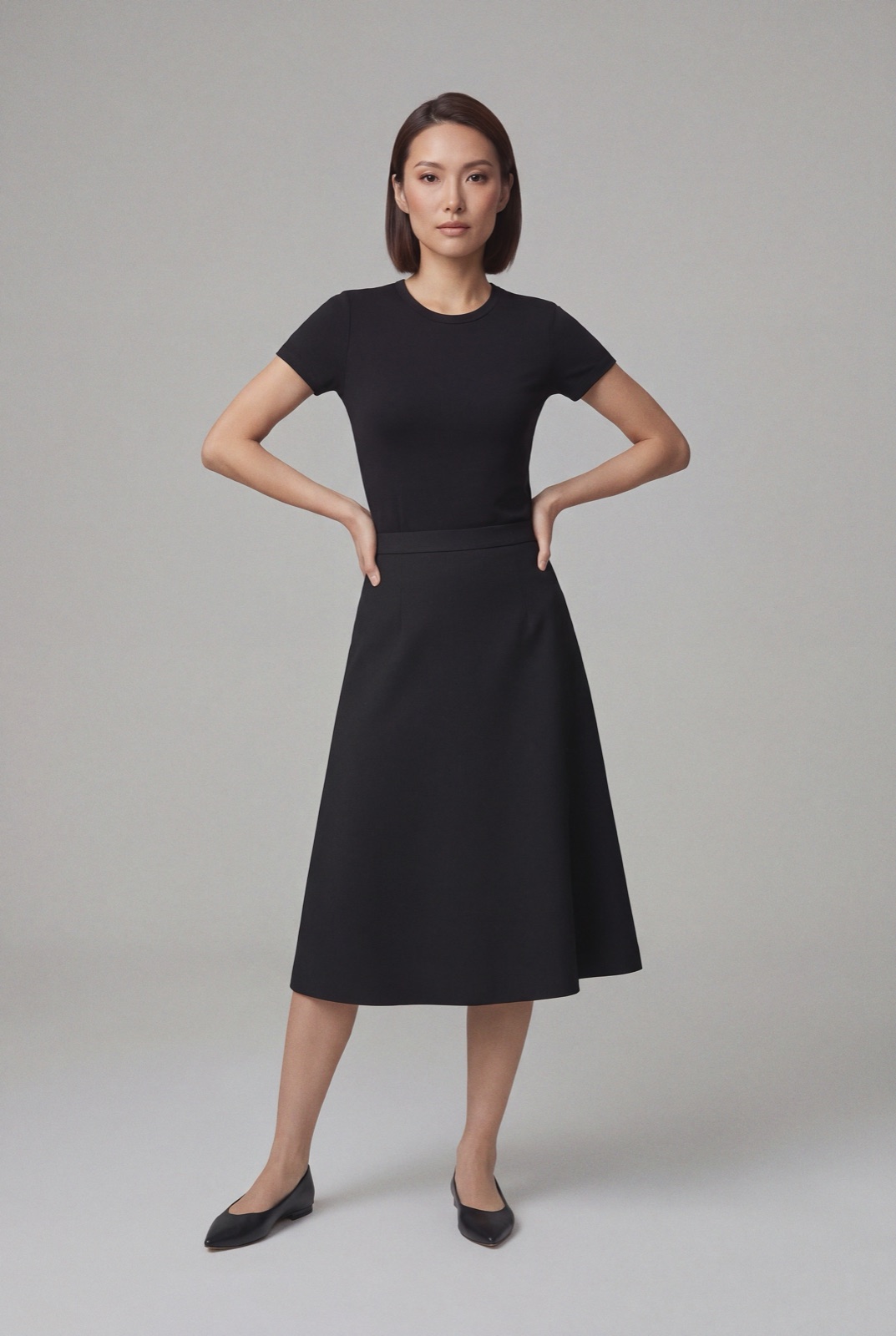
Shopware is an ecommerce platform, and its documentation gives a recommended product image size, the thumbnail sizes it generates from every upload, and the settings that decide whether a portrait clothing photo gets squashed. This page collects what the Shopware 6 docs say, with the date we checked them, and turns it into a shot list for clothing. We make NotShot, an AI on-model photo tool, so we also cover where on-model images fit.
An on-model render made with NotShot, in portrait format. Shopware's Standard Responsive Theme recommends square product images, so plan the crop before upload.
Square, 600×600: in the Standard Responsive Theme, Shopware recommends square product images at 600×600 pixels for optimal display. Other resolutions are also possible.
Higher for zoom: if you want uploaded images to be zoomed in, Shopware recommends a higher resolution and gives 1920×1920 as an example.
Not too large: for good performance, Shopware says not to use images that are too large, and notes that loading times can increase with a higher resolution.
Preview image: in the same section you choose which image is used as the preview image, for example in the product listing.
For clothing, 1920×1920 is a sensible target: it matches the largest default thumbnail below and leaves room for zoom on fabric and details.
Thumbnails Shopware generates
The Shopware 6 media documentation (checked by us on 1 November 2026) says the three default thumbnail sizes for all uploaded images are 400×400, 800×800 and 1920×1920. Thumbnail settings are set per media folder:
Keep aspect ratio: keeps the aspect ratio of the original image, so a rectangular image is not distorted with square thumbnail settings.
Thumbnail quality: a value from 1, very low quality, to 100, very high quality.
Thumbnail sizes: you can remove existing sizes or add new ones. With the lock symbol on, the width is set equal to the height.
Regenerating: after changing sizes, regenerate thumbnails with the console command media:generate-thumbnails in the main directory of your Shopware installation.
Per folder: a folder can inherit the settings of its parent folder, and thumbnail generation can be switched off for a folder.
Clothing photos are usually portrait. If yours are, check that Keep aspect ratio is on for the product media folder before you upload a full catalog, or crop to a square first so every listing tile lines up.
Variant images
The products documentation says you can assign a separate image to each variant, either from the images already added in the product's Media section or by uploading one from your computer. In the variant list, the Media column shows which product image is the preview image of each variant, and you can remove images, select a different preview image or add one from the media management (checked 1 November 2026). For clothing sold in several colors, that means one photo per color variant, set one by one.
Video and 3D
From the same Media section of the products documentation (checked 1 November 2026):
Video formats: webm, mkv, flv, ogv, ogg, avi, mov, wmv and mp4.
MP4 first: Shopware says MP4 works most reliably, is supported by all major browsers and is especially suitable for cover videos. MOV may not play correctly in some browsers such as Chrome.
3D models: only the glb format, and a 3D model can't be used as a product cover.
Shopware image checklist for clothing
Size: square, at least 600×600 pixels, and around 1920×1920 if you want zoom.
Portrait photos: crop to a square, or turn on Keep aspect ratio in the folder's thumbnail settings.
Preview image: set the front view as the preview image so the listing shows the garment clearly.
Variants: give each color variant its own image and preview image.
File weight: don't upload larger than you need, since load time grows with resolution.
Shopware's documentation sets no rule about models, so on-model photos can sit next to your product shots in a product's Media section or as variant images. NotShot renders your garment on your own model from the product photo you already have. Before upload, crop the render to a square or keep Keep aspect ratio on, as described above. Every render is checked by an AI judge that compares it with your upload for color, print and cut. Renders below the quality bar are refunded automatically, so you pay for photos that pass the check, not for attempts. Plans are on the pricing page.
Questions we get asked
What size should product images be in Shopware?
Shopware's product documentation recommends square product images at 600×600 pixels for optimal display in the Standard Responsive Theme, and says other resolutions are also possible. If zoom matters to you, it recommends a higher resolution and gives 1920×1920 as an example, noting that loading times can increase. Checked in the Shopware 6 docs on 1 November 2026.
What thumbnail sizes does Shopware create?
Shopware's media documentation says the three default thumbnail sizes for all uploaded images are 400×400, 800×800 and 1920×1920. You can add or remove sizes in the folder settings and regenerate thumbnails with the media:generate-thumbnails console command.
Will Shopware distort portrait clothing photos?
Not if Keep aspect ratio is on. Shopware's media docs say this folder setting keeps the aspect ratio of the original image, so a rectangular image is not distorted with square thumbnail settings.
Can each variant have its own image in Shopware?
Yes. Shopware's product docs say you can assign a separate image to each variant, either from the images already in the product's Media section or by uploading a new one, and choose the preview image of each variant.
NotShot is a Berlin-based tool for on-model product photography without the photoshoot. Try NotShot