JTL-Shop is a shop system from JTL-Software, usually run together with the JTL-Wawi merchandise management software, where you manage item images per shop and marketplace. JTL does not publish a single required image size. Instead, the JTL-Guide gives a recommended minimum and lets you set the sizes your shop renders. This page collects what the guide says, with the date we checked it, and turns it into settings for clothing photos. We make NotShot, an AI on-model photo tool, so we also cover where on-model images fit.
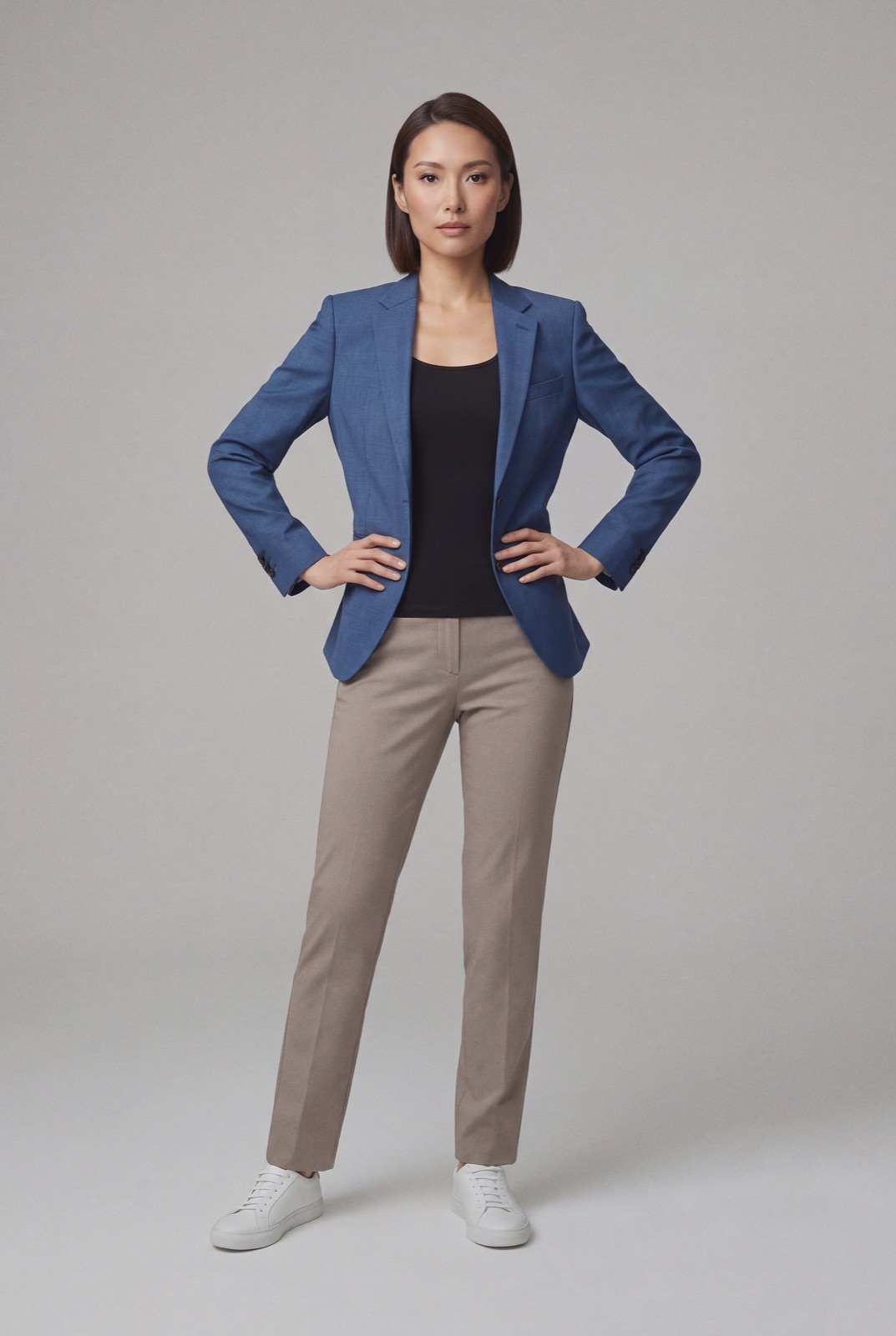
An on-model render made with NotShot, 1073×1600 pixels. The shortest side clears the 800 pixels JTL recommends, but the image is portrait, so a square image size with container size on would add bars at the sides.
The minimum: 800 pixels on the shortest side
JTL's guide page Detailbeschreibung: Bilder skalieren und konvertieren (in German, checked by us on 1 November 2026) covers the batch tool in JTL-Wawi under Artikel > Bildgrößen. It says that if you convert images for JTL-Shop, the shortest side should be at least 800 pixels. The same paragraph adds that some platforms, such as Amazon, offer a zoom function, and that if you want to use it, one side of your product images should be about 1600 pixels long. The tool keeps the original aspect ratio.
For format, the guide recommends JPEG or PNG for photos. PNG is lossless but can produce much larger files than JPEG, and JTL notes that most customers won't see a difference between the two. A note on the same page says JTL-Shop recalculates the image sizes according to its own settings anyway.
The sizes JTL-Shop renders
JTL's guide page Settings for images (checked by us on 1 November 2026) describes the shop settings:
Picture sizes Mini, Small, Normal and Large: you set the default resolution for each size, per content type, including items, variations and categories. Your uploads are recalculated into each size.
Template decides: the visible image size always depends on the template settings, so a change may only show when an image is called up directly.
JPEG image quality: a value from 1 to 100. JTL says the predefined 85 is usually sufficient, and that higher values make larger files, sometimes larger than the originals.
File format: JPEG, PNG or Auto. Auto also creates .webp files if the server allows it, which need extra server storage but are much smaller and improve front end performance.
Container size and bars on non-square photos
The same page explains the option to match image size to container size. Images in JTL-Shop are usually shown in a frame or container, and this option scales them to the container. If the image's aspect ratio does not match the setting, bars in the background color appear at the edges, for example when the size is 320×320 pixels and the image is not square. The background color setting sets the color of those bars.
Clothing photos are often portrait, especially full length on-model shots. Either set your image sizes to the ratio you shoot in, or shoot on a background that matches the bar color so the bars don't show.
Main image: the image with sort number 1 is the main image for your shops and for eBay and Amazon. You can change the order per platform.
Per platform: each image is assigned to the shops and marketplaces it should appear on, so one item can show different images in your shop and on a marketplace.
Resolution: ideally an image should not exceed the maximum output size of your shop or platform.
Bulk import: with JTL-Ameise, a CSV import can transfer up to 20 images per item and platform.
The shop settings page adds that variations can be shown as images, so a color option can show its own photo. For clothing, that means one set of photos per color.
JTL-Shop image checklist for clothing
Size: shortest side at least 800 pixels, and about 1600 pixels on one side if the same image also goes to a marketplace with zoom.
Ratio: match your Mini, Small, Normal and Large sizes to the ratio you shoot in, or pick a bar color that matches your background.
Format: JPEG, or Auto for extra .webp files if your server allows it. Keep JPEG quality near the default 85.
Order: put the front view at sort number 1, then the back, details and an on-model shot.
Colors: give each color variation its own images.
Per platform: check which images are assigned to your shop and which to each marketplace.
The JTL-Guide pages above set no rule against models in product images, so an on-model photo can sit next to your packshots on the item page. NotShot renders your garment on your own model from the product photo you already have, and every render is checked by an AI judge that compares it with your upload for color, print and cut. Renders below the quality bar are refunded automatically, so you pay for photos that pass the check, not for attempts. Plans are on the pricing page.
Questions we get asked
What size should product images be for JTL-Shop?
JTL's guide to scaling and converting images in JTL-Wawi says that if you convert images for JTL-Shop, the shortest side should be at least 800 pixels. JTL-Shop then recalculates each image into its Mini, Small, Normal and Large sizes. Checked in the JTL-Guide on 1 November 2026.
Why do my JTL-Shop product images have bars at the edges?
With the option to match image size to the container size, JTL-Shop scales images to the container, and if the aspect ratio does not match the setting, bars in the background color appear at the edges, for example a non-square image in a 320×320 pixel size.
Which file format should I use for JTL-Shop images?
JTL-Shop can save images as JPEG, PNG or Auto. Auto also creates .webp files if the server allows it, which JTL says are much smaller and improve front end performance. For converting photos in JTL-Wawi, JTL recommends JPEG or PNG.
What JPEG quality does JTL-Shop use?
You can set a value from 1 to 100, and JTL says the predefined 85 is usually sufficient. Higher values make larger files, and can make the recalculated images larger than the originals.
Which image is the main image in JTL-Wawi?
In the item's Images tab, the image with sort number 1 is the main image for your shops and for eBay and Amazon. You can change the order per platform.
NotShot is a Berlin-based tool for on-model product photography without the photoshoot. Try NotShot