Jumpseller is a hosted ecommerce platform that some clothing brands use for their online store. Its support center gives a file limit, accepted formats and a size table for product photos that depends on the aspect ratio and zoom level you choose. This page collects what the official Jumpseller support center says, with the date we checked it, and turns it into settings for clothing photos. We make NotShot, an AI on-model photo tool, so we also cover where on-model images fit.
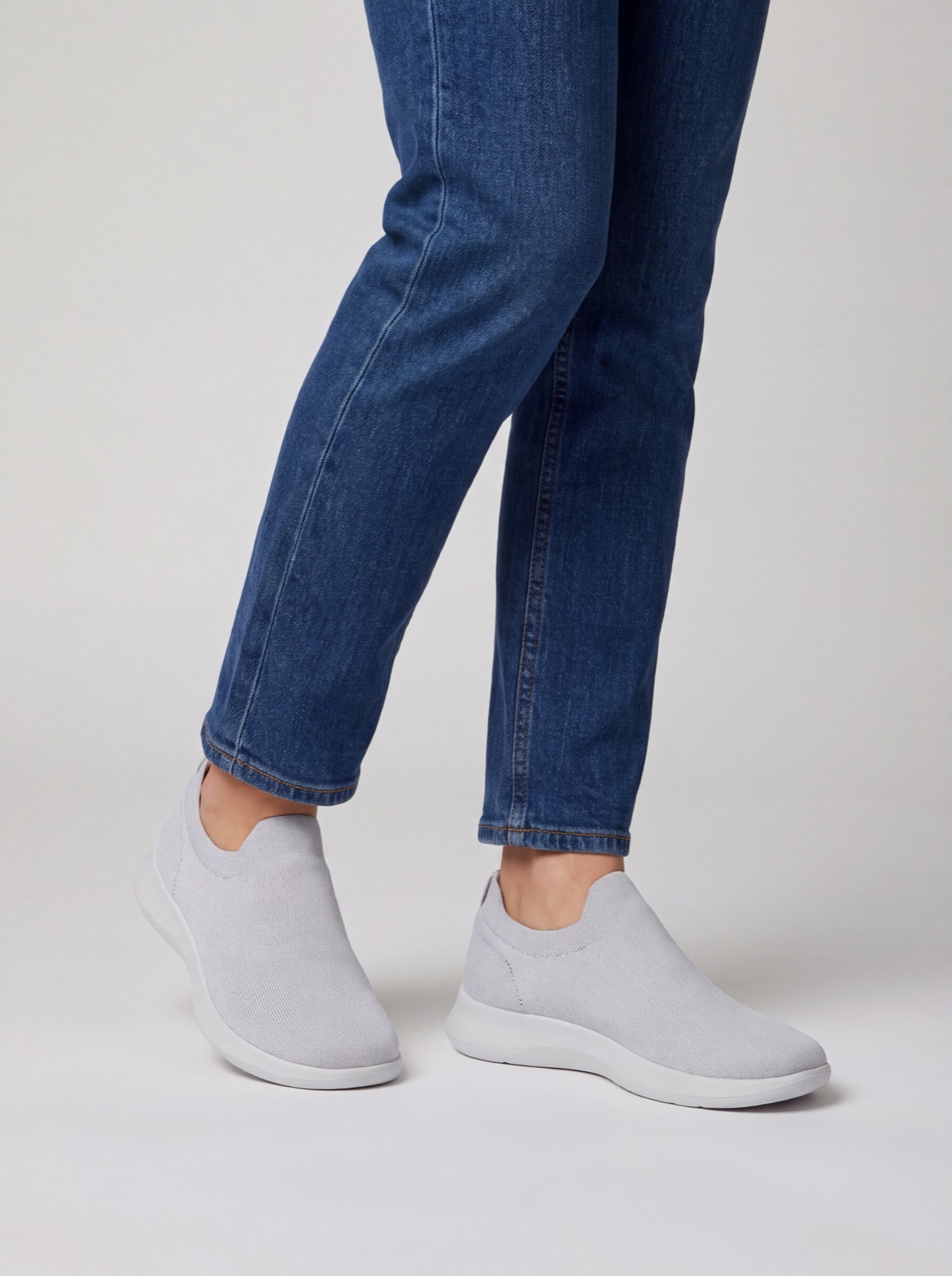
The Jumpseller support article on image sizes (checked by us on 1 November 2026) says you can add as many images per product as you need, with a maximum weight of 2 MB each, in JPG or PNG. It recommends keeping the product in the center of the image, with some extra space for the adjustments the system makes on tablets and phones.
The same article lists product image sizes for two themes: 1080 x 1080 pixels for Wide and 1210 x 1210 pixels for Apparel. For current themes, it points to the theme component docs, covered next.
In current themes, the product page gallery is set up in the Product Template component. The Jumpseller support article on the Product Template component explains that with Format images enabled, you choose a Dimension for all product images:
The Display option then decides what happens to photos that do not match. Crop cuts the image to the exact shape and keeps the center, while Resize keeps the proportions and scales the image down. If Format images is off, images appear in their original format and the gallery adapts to each height. For clothing, Crop can cut off heads or hems, so shoot or render in the shape you choose.
With the default Desktop width of 760, the same article lists these minimum suggested dimensions for desktop:
Jumpseller support notes that with Zoom enabled, you might need images a bit bigger than these so they do not pixelate. If you raise the Desktop width, scale the sizes up to match. Keep the 2 MB limit in mind for the largest sizes, and check the file weight after export.
The Jumpseller support guide to creating a product says the first image, top left, is the main image and, depending on your theme, the largest one shown. Drag an image to the first position to make it the main one. The guide suggests enough angles that a customer does not have to guess.
Variants such as colors can have their own images. Upload them next to the product images and pick the variant each belongs to, or click the small image icon next to a variant and choose from images you already uploaded. A product can have up to 100 variants.
Running another platform too? Compare ShopBase product image size for clothing, Volusion product image size for clothing and Ecwid product image size for clothing. Running Nuvemshop too? See Nuvemshop product image size for clothing. For lighting and backdrops, see our clothing product photography guide.
The Jumpseller support articles set no rule against models in product images, so on-model photos can sit next to your packshots and variant images. Check each marketplace's own rules before you sell there. NotShot renders your garment on your own model from the product photo you already have, and every render is checked by an AI judge that compares it with your upload for color, print and cut. Renders below the quality bar are refunded automatically, so you pay for photos that pass the check, not for attempts. Plans are on the pricing page.