ShopBase is a hosted ecommerce platform used by dropshipping and print on demand sellers, and by some clothing brands. Its help center covers which files you can upload, how many, how the main image is chosen and how variant images work. It does not name a recommended pixel size in the articles we checked. This page collects what the official ShopBase help says, with the date we checked it, and turns it into settings for clothing photos. We make NotShot, an AI on-model photo tool, so we also cover where on-model images fit.
The ShopBase help article on adding product images (checked by us on 1 November 2026) lists the supported formats and limits:
You can add media from your device or with Add media from URL. The ShopBase store optimization checklist recommends JPEG for consistent quality and faster loading.
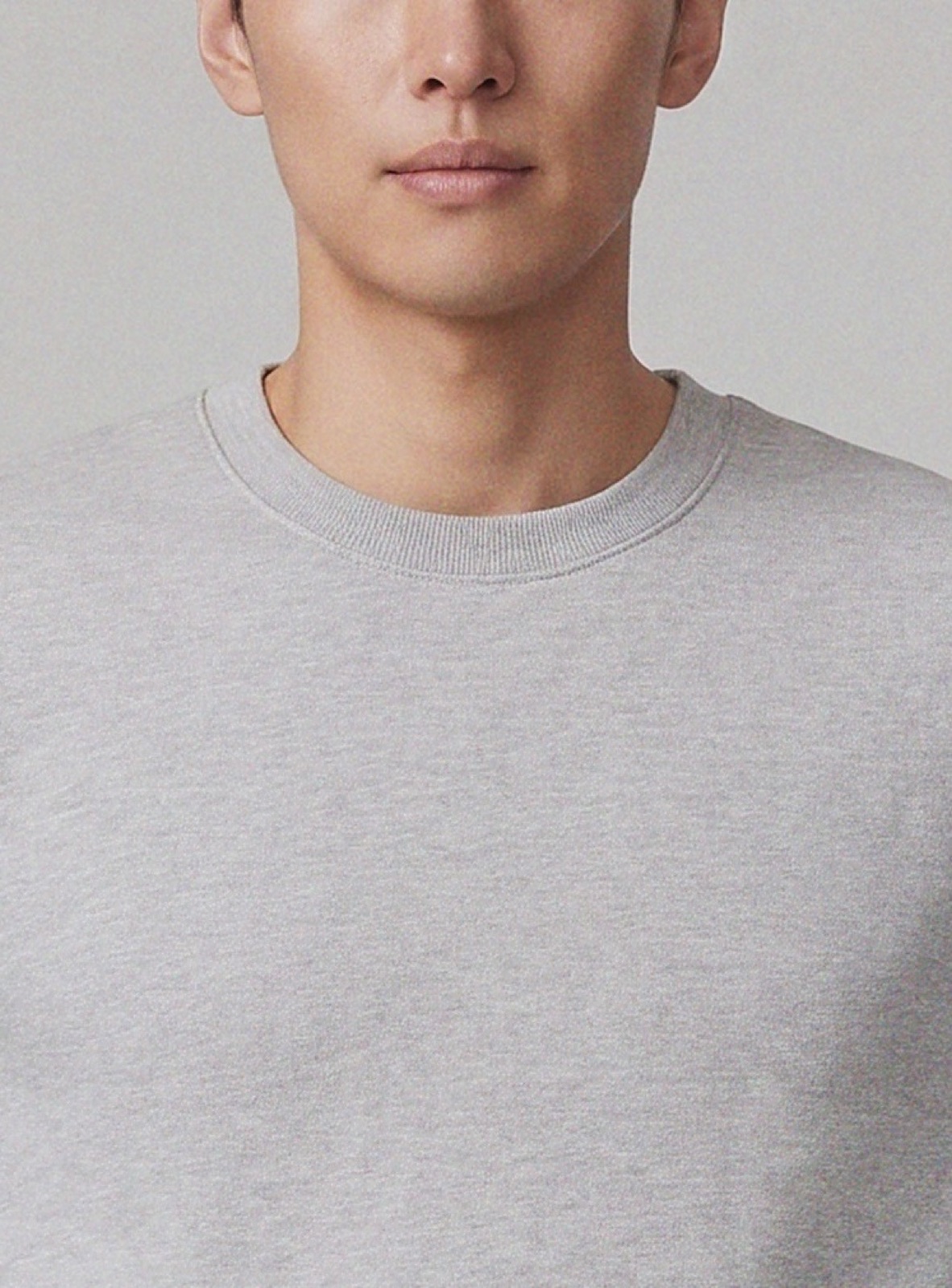
We found no recommended pixel dimensions in the ShopBase help articles above. What the store optimization checklist does say is to keep a consistent aspect ratio for all images. For clothing, that means choosing one shape, for example a portrait ratio that fits a standing model, and using it for every product so the collection grid lines up. Our own renders, like the one on this page, are 1182×1600 pixels, a portrait frame close to 3:4.
In the product media section, the first image, shown largest, is the main image. Drag another image into that position to make it the main image, sort the others the same way, then click Save changes. For clothing, a clean front view or on-model shot usually works best as the main image.
The store optimization checklist recommends at least four images that show the product from different angles, such as front, left, right and top, and adding variant images. For clothing, it suggests color swatches.
The ShopBase help article on variant images explains that shoppers then see only the photos that match the variant they choose, and can pick a variant by clicking its image. In the Variant detail page, click Add media to upload, or Select product media to reuse images already on the product. A variant can have several images, and the one in the first position is the main variant image.
To add alt text, hover over a product image and click ALT. The ShopBase help article on alt text sets a maximum of 512 characters and recommends 125 or less. Describe the garment, the color and the view, for example a heather gray crewneck sweatshirt, front view.
ShopBase can also add a text or logo watermark to all product images, under Online Store, Watermark. The ShopBase help article on watermarks notes that it applies to all product images when enabled, but not to the images sent to Google Merchant Center through product feeds.
Running another platform too? Compare Volusion product image size for clothing, BigCommerce product image size for clothing and Ecwid product image size for clothing. Running Jumpseller too? See Jumpseller product image size for clothing. For lighting and backdrops, see our clothing product photography guide.
The ShopBase help articles set no rule against models in product images, so on-model photos can sit next to your packshots and variant images. Check each marketplace's own rules before you sell there. NotShot renders your garment on your own model from the product photo you already have, and every render is checked by an AI judge that compares it with your upload for color, print and cut. Renders below the quality bar are refunded automatically, so you pay for photos that pass the check, not for attempts. Plans are on the pricing page.