BigCommerce publishes one clear number for product images, an optimal size, plus a file size cap and a short list of file types. For a clothing store, the settings around those numbers matter just as much: which image becomes the thumbnail, how color variants swap the photo, and what the alt text says. This page collects what BigCommerce's own help center and developer documentation say, quoted with the date we checked them, and turns it into a photo set for clothing. We make NotShot, an AI on-model photo tool, so we also cover where on-model images fit.
BigCommerce's help article Adding Products (checked by us on 1 November 2026) lists these product image requirements:
1280 x 1280 is a square. For clothing, that means either shooting square or exporting your portrait on-model shots onto a square canvas with even background on both sides, so the whole garment stays in frame when your theme crops or scales it. Because BigCommerce builds the thumbnails from your upload, export one large, sharp file per view and let the platform make the smaller sizes. A JPG at 1280 pixels or a little larger stays well under 8 MB and still shows knit, weave and print when a shopper zooms in.
BigCommerce's developer reference Create a product image (checked by us on 1 November 2026) says a product can have up to 1000 images, and that each image file or image uploaded by URL can be up to 8 MB. No clothing listing needs that many. Plan the set around the views a shopper needs before buying, like the six in the list below, and give each one a clear job.
The same Adding Products article says you add images by drag and drop, with Upload Images, or with Add from URL for an image or a YouTube video already on the web. After adding images, you pick the Thumbnail radio button for the image that represents the product on listing pages such as category pages, the homepage and store search results. The first image in the sort order is the default image on the product detail page and in Quick View (checked 1 November 2026).
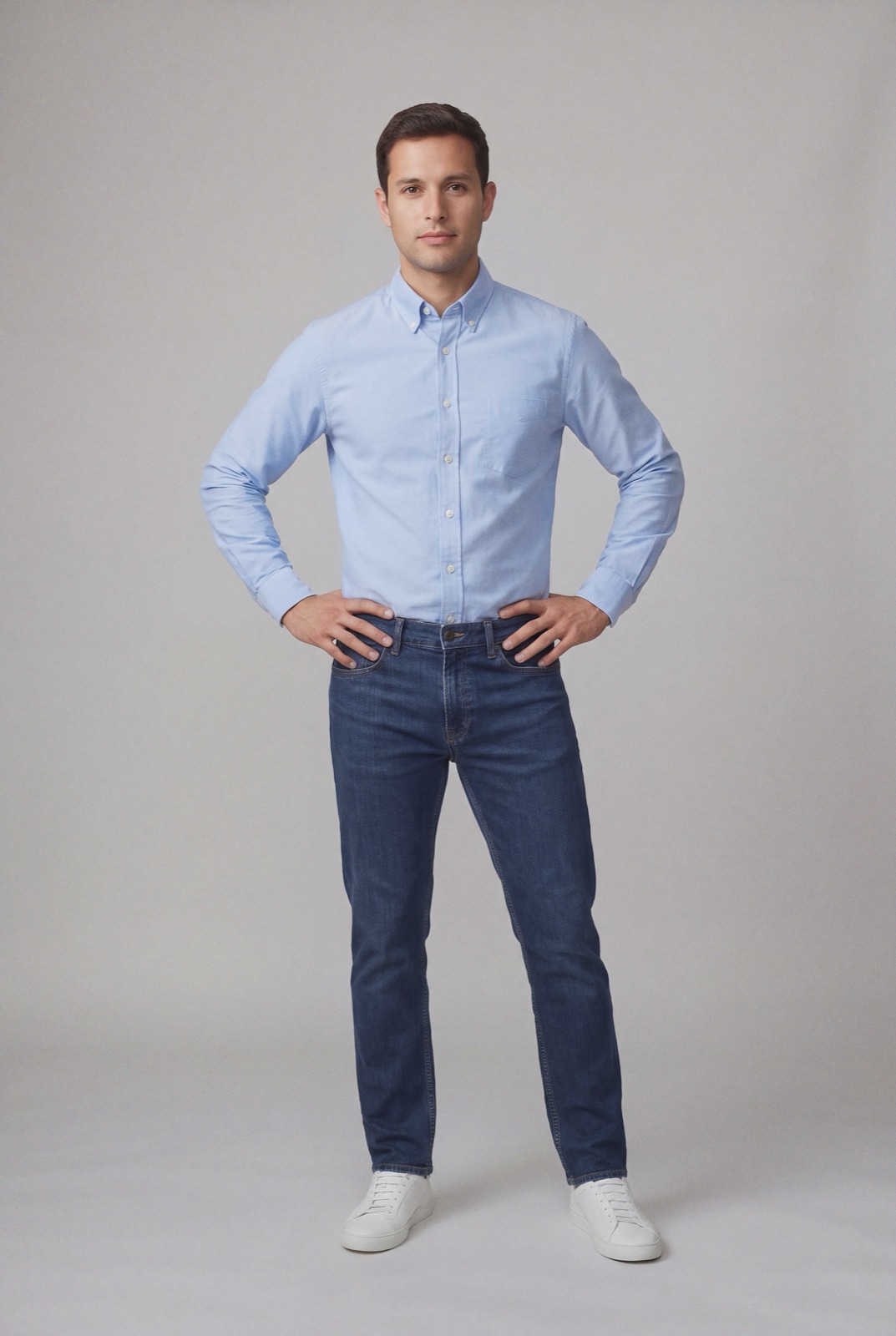
For clothing, make the on-model front view both the thumbnail and the first image, so the category grid and the product page open on the same photo. Shoot every product at the same framing, so a dress and a T-shirt sit at the same scale in the grid.
BigCommerce says you can assign unique attributes to each variant, including an image, and that when a shopper selects a variant on the storefront, the product price and image update automatically (Adding Products, checked 1 November 2026). The 8 MB limit applies to variant images too.
So every colorway needs its own photo that shows that exact color on the garment. When a shopper clicks navy and the image changes, that photo is the one they buy from, so it has to match the color they receive.
In BigCommerce, the image Description field is the image's alt tag. BigCommerce says it helps shoppers who use a screen reader and is used by search engines to return relevant image results, and that if you leave it blank, the product name is used instead (Adding Products, checked 1 November 2026).
For clothing, write what each view shows rather than repeating the product name: "Navy linen shirt, front view on model", "Navy linen shirt, back view", "Close up of linen weave and buttons". That helps screen reader users tell the views apart and gives image search something specific to match.
Comparing platforms? See Shopify product image size, WooCommerce product image size for clothing, Squarespace product image size for clothing, Wix product image size for clothing, Ecwid product image size for clothing and Big Cartel product image size for clothing. Running Shopping ads from your store? See Google Shopping image requirements. For lighting and backdrops, see our clothing product photography guide.
A clothing store on BigCommerce needs an on-model thumbnail for every product and a matching image for every color variant, which adds up fast when each one means a model shoot. NotShot renders your garment on your own model from the product photo you already have, so each item and each colorway can get an on-model image with the same model across the store. Every render is checked by an AI judge that compares it with your upload for color, print and cut, so the variant photo shows the color the customer receives. Renders below the quality bar are refunded automatically, so you pay for photos that pass the check, not for attempts. Plans are on the pricing page.