On an Ecwid Instant Site, the banner is usually the Cover section at the top of the home page, or a Promo Slider that rotates through several large images. Ecwid publishes one recommended size range for these images, a file size cap and a list of file types, plus settings that decide how the image is cropped on phones. This page collects what Ecwid's own Help Center says, quoted with the date we checked it, and turns it into a banner plan for a clothing store. We make NotShot, an AI on-model photo tool, so we also cover where on-model images fit.
Ecwid's help article Adding and editing site sections (checked by us on 1 November 2026) gives these image guidelines for Instant Site sections:
For a clothing banner, export a wide image at the top of that range or above, as a JPG, so the fabric still looks sharp on a large desktop screen. A file of a few megabytes is plenty and stays far below the 20 MB cap.
The same article says that as the website layout adapts to the size of a customer's device, the image is stretched and narrowed depending on the screen size, which can clip it on some devices. Ecwid's advice is to crop your images so that the most important information is in the center, or to add borders to the ends of the image (checked 1 November 2026).
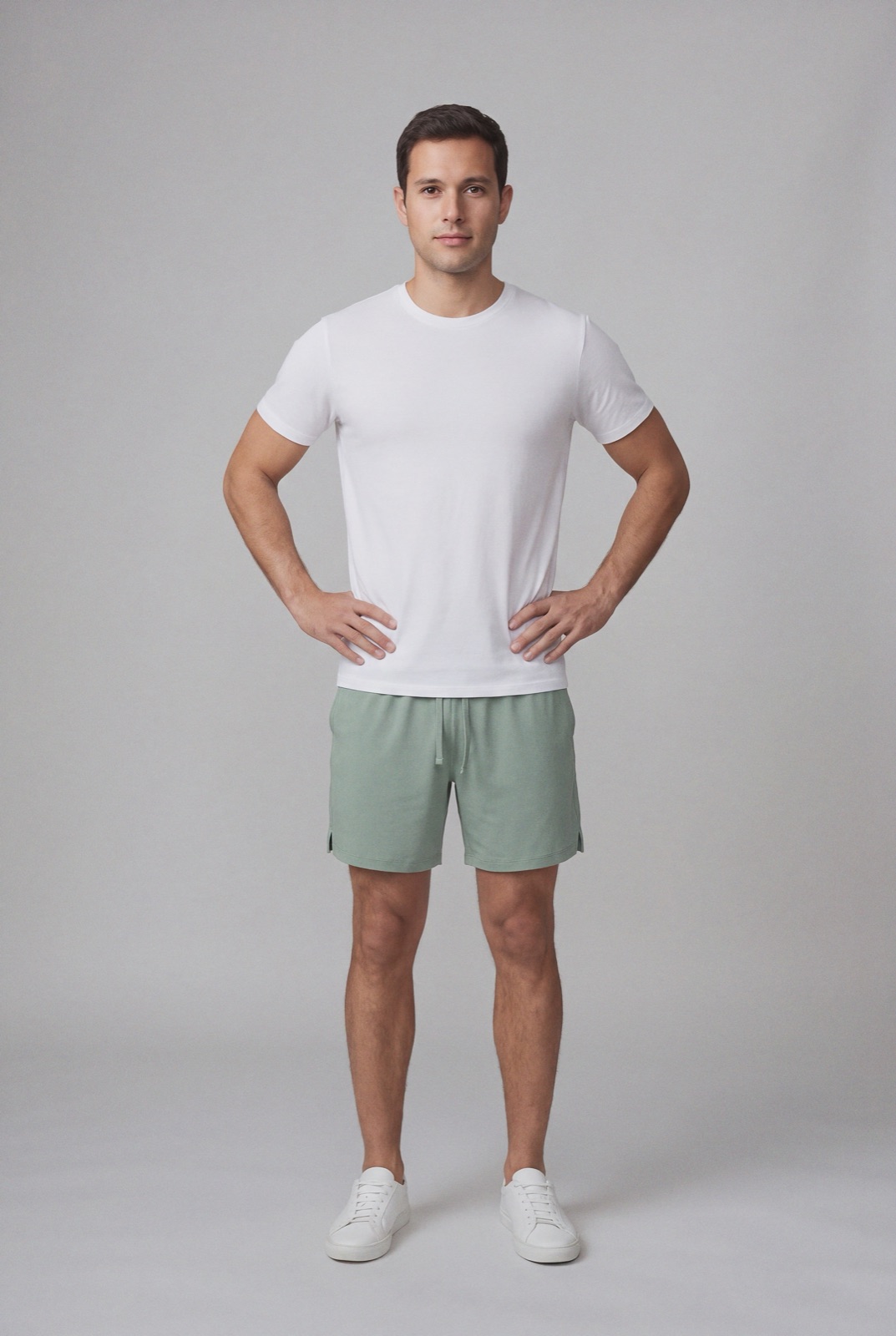
For clothing, put the model and the garment in the middle third of the frame and leave plain background on both sides. A wide shot with the model at the far edge looks fine on a laptop and loses the outfit on a phone.
Ecwid's article Customizing mobile view for Instant Site sections (checked by us on 1 November 2026) says you can set a mobile layout for the Cover and Promo Slider sections, with two options:
To change it, go to Website, then Edit Site in your Ecwid admin, pick the page with Page at the top of the editor, click the section, open the Design tab and click Mobile layout, then Publish. Ecwid notes that some section layouts don't let you choose a mobile view, so you may need to change the basic layout on the Design tab first. If your banner shows a full outfit, the option that doesn't crop keeps the whole garment in view on a phone.
Ecwid's article Adding slider to Instant Site (checked by us on 1 November 2026) describes the slider as one big image at a time, as an automatic or manual slideshow, with a short text and a call to action button on each slide. You add it with Add Section, then Promo Sliders. On the Design tab you can choose how the slider looks on desktop and mobile, turn the automatic slideshow on or off, add a color overlay for photos, and hide the slide title, description and button.
For a clothing store, use one slide per collection or drop, shot on the same model, framing and background, so the slideshow looks like one campaign. If you add a color overlay to make the text readable, check that it doesn't change how the garment's color reads.
Ecwid's article Adding welcome texts and banners to category page (checked by us on 1 November 2026) says images you add to a category description appear at the top of that category page, and that choosing the Store front page category puts them on the store home page. You do this under Catalog, then Categories, in the Description field. For a bar across most pages, including product pages and checkout, Ecwid points to the Announcement section in Instant Site.
Category covers matter too. The sections article says that when you don't upload an image for a category, Ecwid selects a random photo of a random product from that category as its cover (checked 1 November 2026). Upload your own on-model cover for each clothing category, so the dresses tile doesn't open on a flat lay of a belt.
For the product photos under the banner, see Ecwid product image size for clothing. Comparing platforms? See Wix banner image size, Squarespace banner image size and Shopify collection image size. On Big Cartel instead? See Big Cartel banner image size. For lighting and backdrops, see our clothing product photography guide.
A clothing banner needs a wide, sharp on-model photo for every drop, plus a cover for every category, and each one usually means a model shoot. NotShot renders your garment on your own model from the product photo you already have, so the Cover, every slide and every category cover can share one model, one framing and one background. Every render is checked by an AI judge that compares it with your upload for color, print and cut, so the banner shows the colors customers receive. Renders below the quality bar are refunded automatically, so you pay for photos that pass the check, not for attempts. Plans are on the pricing page.