WooCommerce doesn't force one image size on you. It takes whatever you upload and generates smaller versions for the shop grid, the product page and the cart, using settings in your theme and the Customizer. That flexibility is why WooCommerce clothing stores so often end up with blurry thumbnails or cropped-off feet. This page collects what WooCommerce's own documentation says, quoted with the date we checked it, and turns it into a setup for clothing. We make NotShot, an AI on-model photo tool, so we also cover where on-model renders fit.
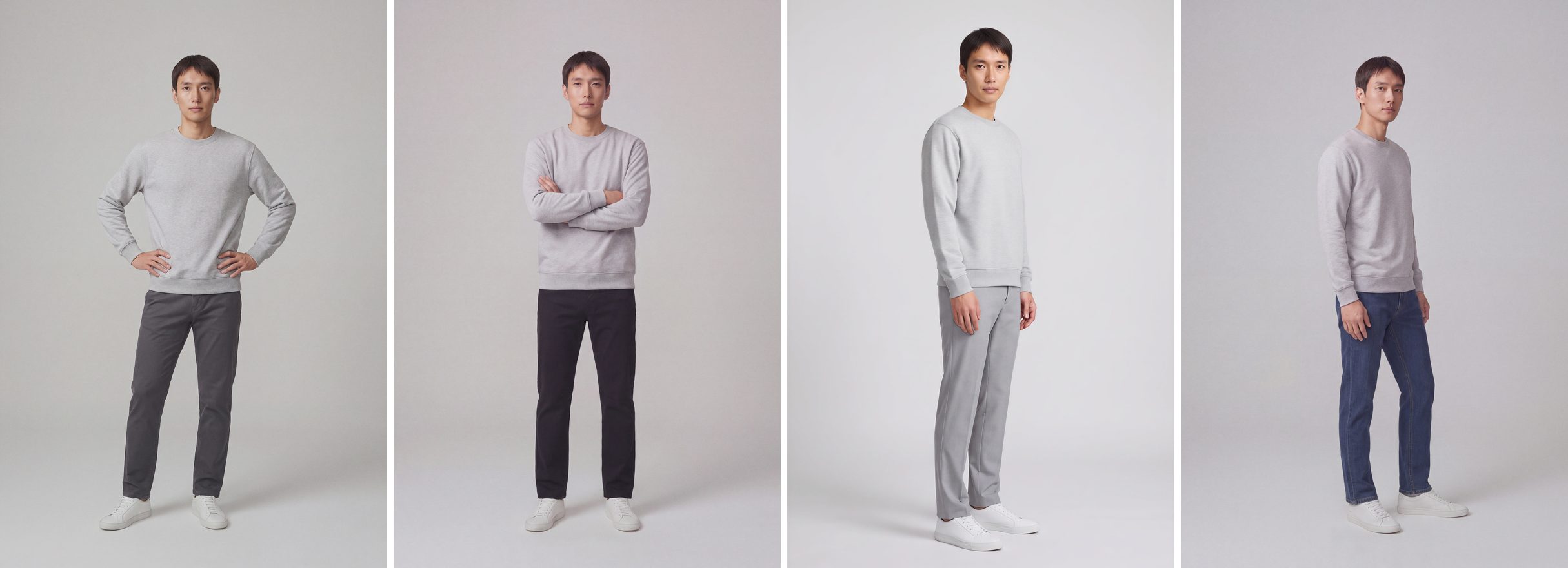
WooCommerce's guide Adding Product Images and Galleries (last modified by WooCommerce on 9 October 2026, checked by us on 1 November 2026) says to upload images that are at least 800 x 800 pixels. That size renders well as the single product image, catalog image and thumbnail, and WooCommerce adds that larger images are better for products with fine detail. Smaller images work, but the guide calls images a key sales tool and says to use the highest quality you have.
Clothing is a fine detail product: knit texture, stitching, print edges and fabric sheen are what shoppers zoom in on. Our suggestion, not a WooCommerce rule, is to export around 1600 to 2000 pixels on the long side, as JPEG, so zoom stays sharp without oversized files.
From the same guide (checked 1 November 2026), WooCommerce uses three types of product image:
WooCommerce's image sizing docs for theme developers (checked 1 November 2026) give the defaults behind these: the single image is shown uncropped, as uploaded, at a default 600px width; the catalog thumbnail defaults to 300px wide and square cropped; the gallery thumbnail is square cropped at 100 x 100 pixels. Themes can declare their own widths, and when they do, the store owner can't change them.
In Appearance > Customize > WooCommerce > Product Images, WooCommerce offers three cropping options for catalog and thumbnail images (Product Page and Product Images, checked 1 November 2026):
For clothing, this is where most problems start. A full-length dress or an outfit shot on a model is taller than it is wide, so a square crop can cut off the head or the shoes. Pick one ratio for the whole catalog: square if your products are mostly tops and flat lays, or a custom portrait ratio such as 3:4 if you show full-length on-model photos. Then shoot or render every product with room around the figure, so the crop never touches the garment.
Block themes may hide the Customize menu. WooCommerce's guide says you can open the Customizer directly at yourdomain.com/wp-admin/customize.php.
WooCommerce's guide Fixing blurry product images (last modified by WooCommerce on 19 May 2026, checked by us on 1 November 2026) says blurry images usually come from theme styling with image dimensions that don't fit your uploads. Its steps, in short:
WooCommerce says to regenerate thumbnails any time you activate a new theme or change image dimension settings. It also explains that uploads are resized to your settings, and that hard cropping forces the exact size by cropping rather than distorting.
WooCommerce says the product image is always the first item in the gallery, so you don't add it again, and gallery images can be reordered by drag and drop. Since WooCommerce 11.1 you can also add videos to the gallery as an experimental feature, turned off by default; videos can't be the main product image.
Moving from Shopify or selling there too? Compare with Shopify product image size and Squarespace product image size for clothing. On Wix? See Wix product image size for clothing. On Big Cartel? See Big Cartel product image size for clothing. On BigCommerce? See BigCommerce product image size for clothing. On Ecwid? See Ecwid product image size for clothing. If you also list on marketplaces, see Amazon fashion image requirements and Google Shopping image requirements, which reads your WooCommerce images through your product feed. Planning collection pages on Shopify? See Shopify collection image size. For lighting and backdrops, see our clothing product photography guide.
A WooCommerce grid looks even only when every product has the same ratio and framing, which is hard to keep across shoots. NotShot renders your garment on your own model from the product photo you already have, so new products match the framing of the old ones. Every render is checked by an AI judge that compares it with your upload for color, print and cut. Renders below the quality bar are refunded automatically, so you pay for photos that pass the check, not for attempts. Plans are on the pricing page.