Lightspeed eCom is the online store side of Lightspeed, and its support site lists hard limits for product images: how many per product, how big, and which formats. This page collects what the Lightspeed eCom (C-Series) support articles say, with the date we checked them, and turns it into a shot list for clothing. We make NotShot, an AI on-model photo tool, so we also cover where on-model images fit.
Lightspeed's article Understanding eCom (C-Series) specifications and limits (checked by us on 1 November 2026) lists these limits for product images:
These limits are for eCom (C-Series). If your store runs on a different Lightspeed eCom version, check the support article for that version.
The article Adding product images (checked by us on 1 November 2026) recommends square or rectangular high resolution images, because they zoom better. It says the limits for image dimensions depend on how your theme is designed, and points to your theme's manual. So the 5128 pixel figure is a platform ceiling, not a display size. For clothing, pick one shape for every product so your collection grid lines up, and check your theme manual for the size it shows.
The same article says that if your eCom store is connected to a Retail POS or an OnSite POS, there are important differences and special requirements for adding images, with separate instructions for each.
Lightspeed's article Making images correspond to product variants (checked by us on 1 November 2026) explains how to show the right image when a shopper picks a variant. Add the images to the product first, then go to Products, open the product, scroll to INVENTORY & VARIANTS, select the thumbnail placeholder beside a variant, pick the image and save. For a dress sold in three colors, that means one photo per color, assigned to its variant.
In Preventing image color changes (checked by us on 1 November 2026), Lightspeed says images in a CMYK color space look noticeably dull after upload, and asks you to make sure images are RGB before uploading. If any of your photos were prepared for print in CMYK, convert them to RGB first, or the color shoppers see won't match the garment.
Comparing store builders? See Shopify product image size, Square Online product image size for clothing, Wix product image size for clothing and Ecwid product image size for clothing. Using Shopware? See Shopware product image size for clothing. For lighting and backdrops, see our clothing product photography guide.
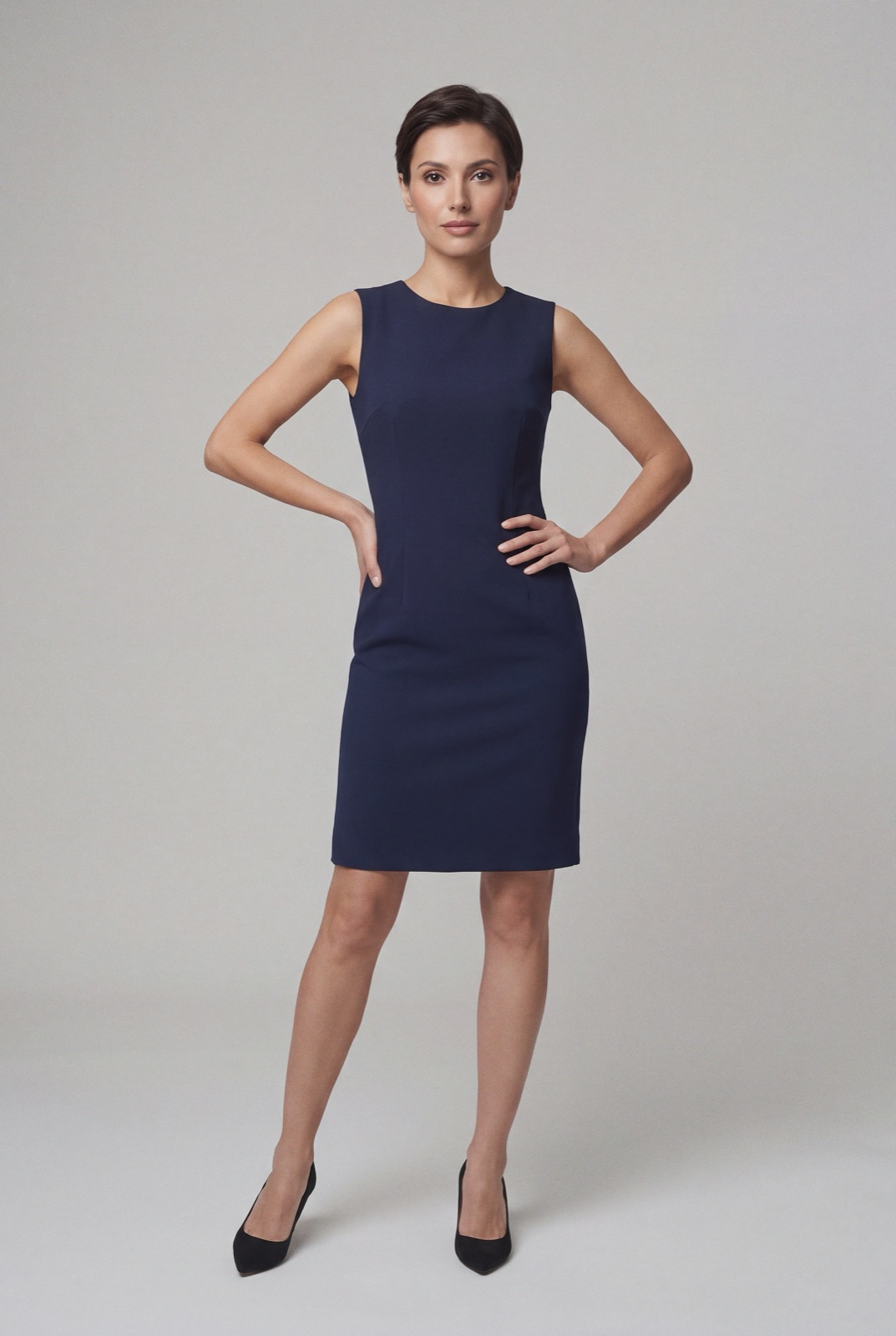
Lightspeed's support articles set no rule about models, so on-model photos can sit next to your product shots in a product's image slots. NotShot renders your garment on your own model from the product photo you already have. Before upload, check the file against the limits above: RGB, no more than 5128 pixels on the longest edge, and as small as your quality allows. Every render is checked by an AI judge that compares it with your upload for color, print and cut. Renders below the quality bar are refunded automatically, so you pay for photos that pass the check, not for attempts. Plans are on the pricing page.