PrestaShop is an ecommerce platform, and its documentation explains how it turns each product photo you upload into the image sizes your theme displays. It doesn't give a single magic number. Instead it describes how images are resized, what causes whitespace, and which settings protect quality. This page collects what the PrestaShop 9 docs say, with the date we checked them, and turns it into a shot list for clothing. We make NotShot, an AI on-model photo tool, so we also cover where on-model images fit.
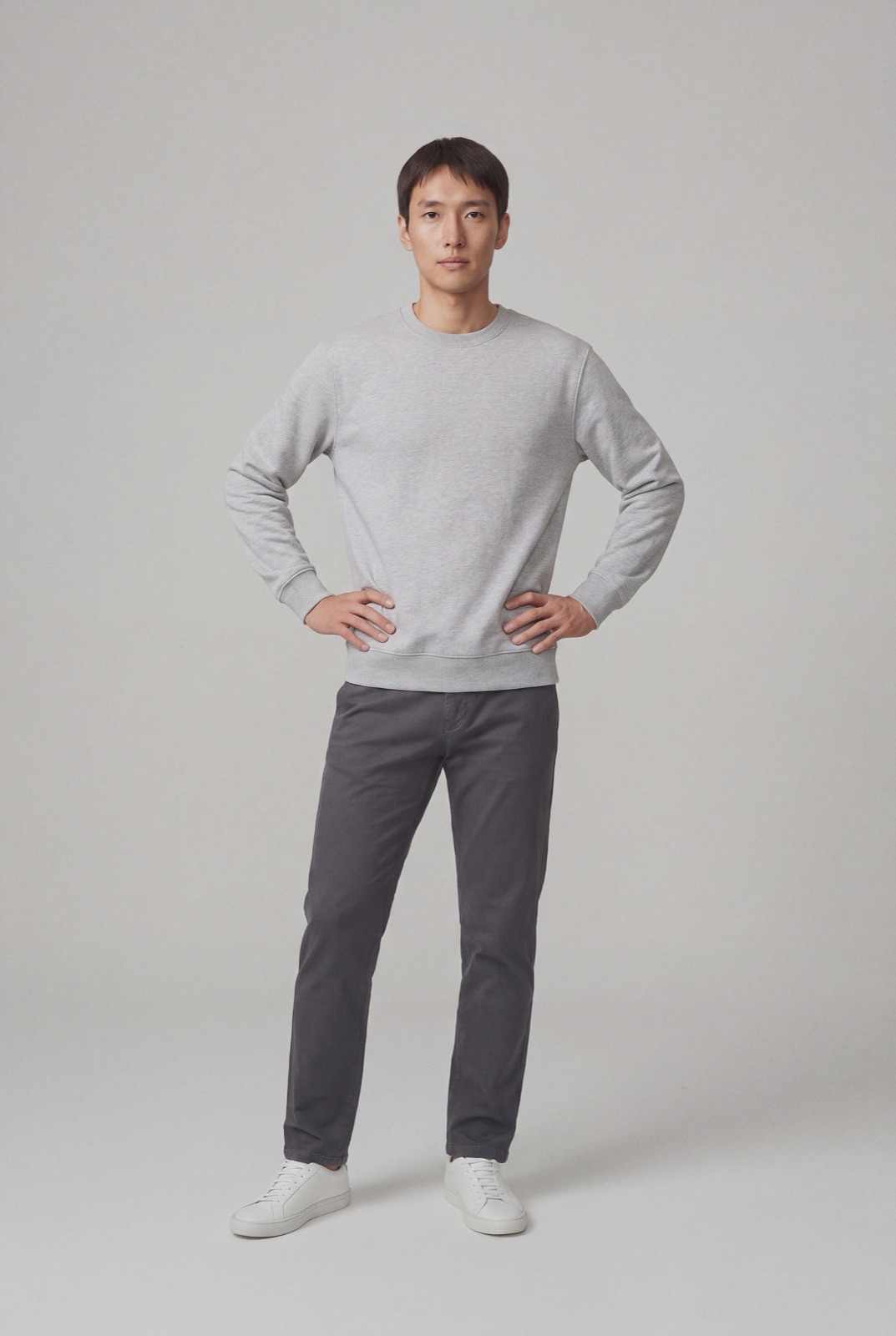
An on-model render made with NotShot, in portrait format. In PrestaShop, match your photo's ratio to your theme's image sizes to avoid whitespace.
One master image, resized for you
The PrestaShop 9 Image Settings docs (checked by us on 1 November 2026) say that when you upload an image, PrestaShop automatically generates various sizes of it, including thumbnails and other smaller versions. So you only upload one master version, big enough to be resized into all the image sizes.
Image types: the Image Settings page lists the image sizes your customers see. By default it shows the sizes from the default Classic theme, and a new theme adds the sizes it needs.
Don't delete them: the docs say all image settings are installed by default and you will need them.
Adding a size: you can add a new image type with a name, width and height, and choose which type of content it applies to.
Match the ratio or get whitespace
The same page says that to make sure your image is resized correctly, upload an image that fits the size ratio of the various image sizes. If the width to height ratio doesn't match the settings in place, you risk seeing whitespace on the resized image. A setting called Generate images based on one side of the source image controls how the image sits in its frame:
Height: fills the frame height, and the width is recalculated to keep the original ratio.
Width: fills the frame width, and the height is recalculated to keep the proportion.
Automatic: width and height are calculated to fill as much of the frame as possible.
Clothing photos are usually portrait. Open the Image Settings page in your back office, check the ratio of the product image types your theme uses, and crop every photo in the catalog to that ratio before upload.
Format, compression and high resolution
From the Images preferences on the same page (checked 1 November 2026):
Format: JPEG or PNG. The docs call JPEG the recommended choice, and offer an option to use PNG only if the base image is PNG.
JPEG compression: don't go below 80, or at worst 75, to avoid visible compression artifacts.
PNG compression: don't go above 6, or at worst 7.
High resolution images: an option generates a second file at twice the resolution for high pixel density screens. The docs note that it doubles your number of image files.
Regenerating: after changing sizes, you can regenerate thumbnails for all content or one type. Manually uploaded thumbnails are erased and replaced.
Upload everything once: upload all the images for the product, including all of its combinations such as color and size.
Cover image: the first uploaded image is the default cover image and appears on the product page. You can change it in that image's settings.
Captions: each image can have a caption, which PrestaShop uses as the image's alt attribute, so the docs call it important for SEO. Translate it if your shop has several languages.
Order: drag and drop images to change their order.
File size limit: the default maximum size for an image file is set by PrestaShop according to your server's PHP settings, and can be lowered in the Images preferences.
Combinations: when you edit a combination, the product's images are shown and you check the ones that best represent that combination.
PrestaShop image checklist for clothing
Ratio: crop every photo to the ratio of your theme's product image types, so no whitespace appears.
Size: upload a master image larger than your biggest product image type, or twice that if high resolution images are on.
Cover: put the front view first so it becomes the cover image.
Captions: write a short caption per image, naming the garment and color, and translate it.
Colors: upload one set per color and assign it to the matching combinations.
PrestaShop's documentation sets no rule about models, so on-model photos can sit next to your product shots and be assigned to combinations like any other image. NotShot renders your garment on your own model from the product photo you already have. Before upload, crop the render to your theme's image ratio, as described above. Every render is checked by an AI judge that compares it with your upload for color, print and cut. Renders below the quality bar are refunded automatically, so you pay for photos that pass the check, not for attempts. Plans are on the pricing page.
Questions we get asked
What size should product images be in PrestaShop?
PrestaShop's docs don't give one fixed size. PrestaShop generates every image size your theme needs from the image you upload, so the docs say to upload one master image big enough to be resized into all the image sizes, with the same width to height ratio as those sizes. The sizes themselves are listed on the Image Settings page of your back office. Checked in the PrestaShop 9 docs on 1 November 2026.
Why do my PrestaShop product images have white space around them?
PrestaShop's Image Settings docs say that if your uploaded image doesn't have the same width to height ratio as the image sizes in place, you risk seeing whitespace on the resized image. Match your photo's ratio to your theme's image sizes.
What JPEG quality should I use in PrestaShop?
The Image Settings docs say not to set JPEG compression below 80, or at worst 75, to avoid visible compression artifacts, and call JPEG the recommended format.
How do I set a different image for each color in PrestaShop?
Upload all images for the product, including those for every combination, then edit each combination and check the box for the images that best represent it, according to the PrestaShop 9 managing products docs.
NotShot is a Berlin-based tool for on-model product photography without the photoshoot. Try NotShot